
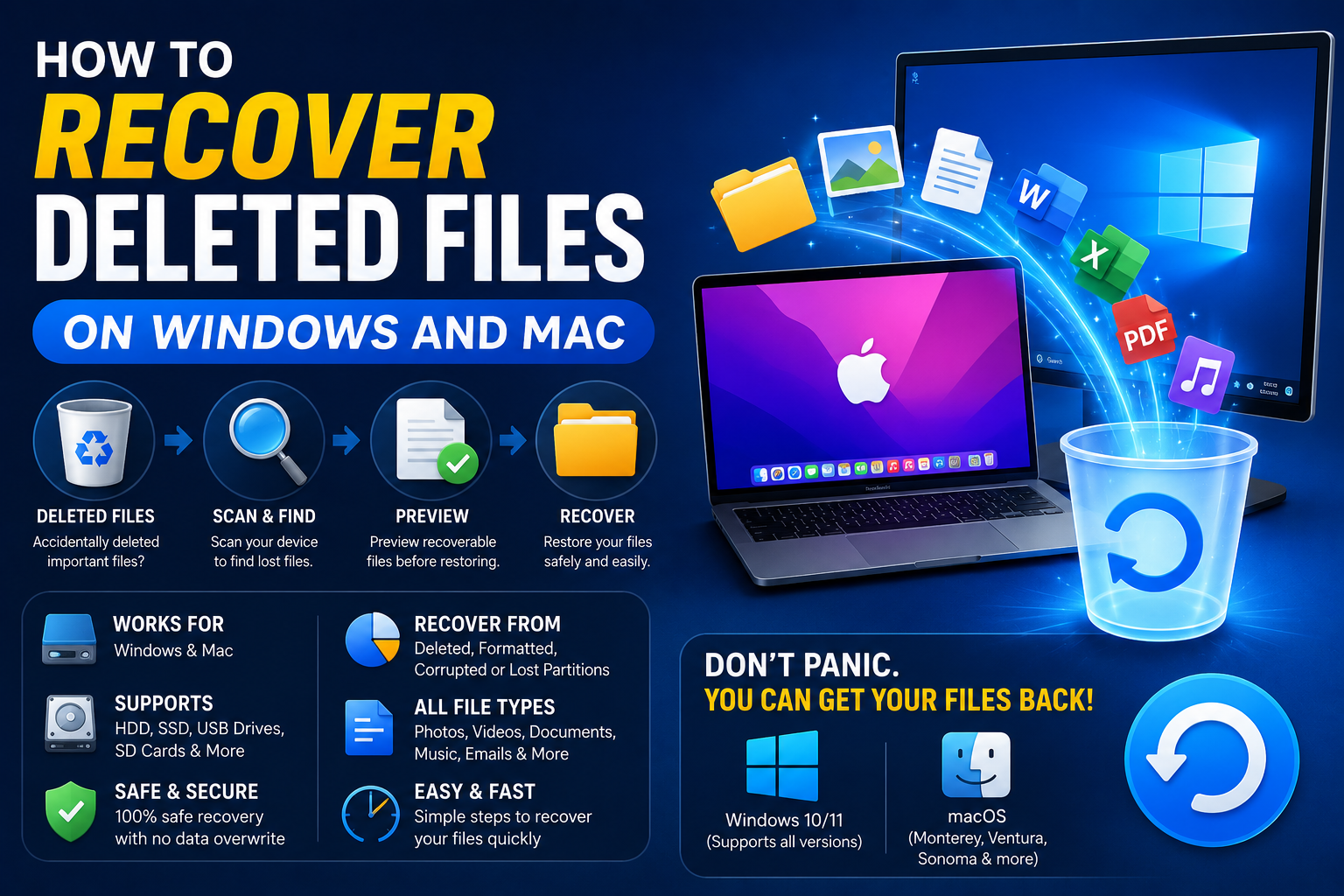
Accidentally deleting important files can be a frustrating experience. Whether it’s a school assignment, business document, family photo, or personal project, losing valuable data can feel like a disaster.
Fortunately, deleted files are not always gone forever. In many situations, files can be recovered using built-in operating system tools, cloud backups, external storage devices, or specialized recovery software.
The key to successful recovery is acting quickly. The longer a device continues operating after file deletion, the greater the chance that the deleted data may be overwritten.
In this guide, you’ll learn how to recover deleted files on both Windows and Mac systems and how to reduce the risk of permanent data loss.
Understanding How File Deletion Works
Many people assume that deleting a file immediately removes it from a computer.
In reality, most operating systems simply mark the file’s storage space as available for future use.
Until that storage area is overwritten by new data, recovery may still be possible.
This is why quick action improves recovery success.
Common Causes of File Loss
Files may disappear for various reasons.
Accidental Deletion
One of the most common causes.
Formatting Errors
Drives may be accidentally formatted.
Software Crashes
Unexpected system failures can corrupt files.
Malware Attacks
Malicious software may delete, encrypt, or damage data.
Hardware Failure
Storage devices eventually wear out.
Understanding the cause helps determine the best recovery method.
Recovering Deleted Files on Windows
Windows offers several recovery options.
Method 1: Check the Recycle Bin
The Recycle Bin should always be your first stop.
Restore a File
- Open the Recycle Bin.
- Locate the deleted file.
- Right-click the file.
- Select Restore.
The file will return to its original location.
Many accidental deletions can be resolved within seconds using this method.
Method 2: Use Windows Search
Sometimes files are moved rather than deleted.
Search Techniques
Search using:
- File names
- Keywords
- File types
The file may still exist elsewhere on the computer.
Method 3: Restore Previous Versions
Windows includes file recovery features that may preserve earlier versions.
Steps
- Right-click the folder.
- Select Properties.
- Open Previous Versions.
- Restore the desired version.
This method can help recover modified or deleted files.
Method 4: Use File History
File History is a backup feature available in Windows.
Recovery Process
- Open the folder where the file existed.
- Access File History.
- Browse available backups.
- Restore the file.
Regular backups dramatically improve recovery options.
Recovering Deleted Files on Mac
Mac users also have several recovery methods available.
Method 1: Check the Trash
Deleted files are usually moved to the Trash first.
Restore a File
- Open Trash.
- Locate the file.
- Right-click it.
- Select Put Back.
The file returns to its original location.
Method 2: Use Spotlight Search
The file may still exist elsewhere.
Search Using Spotlight
- Press Command + Space.
- Enter the file name.
- Review results.
Many files are recovered simply by locating them again.
Method 3: Use Time Machine
Time Machine is Apple’s built-in backup solution.
Recovery Steps
- Open the folder where the file existed.
- Launch Time Machine.
- Browse previous backups.
- Restore the file.
Time Machine is one of the most powerful recovery tools available to Mac users.
Recovering Files from Cloud Storage
Many cloud storage platforms provide recovery features.
Examples include:
- Google Drive
- OneDrive
- Dropbox
Deleted files are often retained temporarily before permanent removal.
For cloud storage comparisons, read Cloud Storage Explained: Google Drive vs OneDrive vs Dropbox.
What to Do Immediately After File Deletion
Your actions after deletion can significantly affect recovery success.
Stop Using the Drive
New data may overwrite deleted files.
Avoid Installing Software
Installations can consume storage space needed for recovery.
Begin Recovery Quickly
The sooner recovery efforts begin, the higher the success rate.
Using Data Recovery Software
When built-in methods fail, recovery software may help.
These tools scan storage devices for recoverable files.
Typical Features
- Deep scanning
- File previews
- Recovery filtering
- Multiple file type support
Recovery success depends on:
- Time since deletion
- Drive activity
- File condition
Results vary from case to case.
Recovering Files from External Drives
External drives can experience file loss too.
Common Causes
- Accidental deletion
- Formatting errors
- File corruption
- Hardware issues
The same recovery principles generally apply.
If possible, disconnect the drive immediately after data loss occurs.
Recovering Files After Malware Attacks
Malware may:
- Delete files
- Encrypt files
- Corrupt storage
Before attempting recovery:
- Remove the malware.
- Scan the system thoroughly.
- Restore from backups if available.
For security advice, read Cybersecurity Tips Everyone Should Follow in 2026.
Preventing Future Data Loss
Prevention is always easier than recovery.
Maintain Regular Backups
Backups remain the most effective defense against data loss.
Use:
- External drives
- Cloud storage
- Backup software
Multiple backup locations provide greater protection.
Use Cloud Storage
Cloud services offer:
- File synchronization
- Version history
- Remote access
- Recovery options
Cloud storage adds another layer of protection.
Maintain Your Computer
Regular maintenance reduces the likelihood of storage-related issues.
For maintenance tips, read Beginner’s Guide to Computer Maintenance.
Monitor Storage Health
Watch for warning signs such as:
- Slow performance
- File corruption
- Frequent crashes
- Unusual drive behavior
Early detection may prevent major failures.
Common Recovery Mistakes
Avoid these common errors.
Continuing to Use the Drive
New data may overwrite recoverable files.
Waiting Too Long
Recovery chances often decrease over time.
Ignoring Existing Backups
Many users forget they already have recoverable copies.
Installing Recovery Software on the Same Drive
This may overwrite the very files you’re trying to recover.
Frequently Asked Questions
Can permanently deleted files be recovered?
Sometimes. Recovery depends on whether the data has been overwritten.
How long can deleted files be recovered?
There is no fixed time limit. Drive activity is the most important factor.
Does recovery software always work?
No. Success varies depending on circumstances.
Can cloud storage help recover deleted files?
Yes. Many providers maintain deleted files temporarily.
What is the best protection against data loss?
Regular backups remain the most effective solution.
Conclusion
Accidentally deleting files does not always mean they are lost forever. Both Windows and Mac provide built-in recovery options, and cloud storage services often offer additional protection.
By acting quickly, using the appropriate recovery tools, and maintaining reliable backups, users can significantly improve their chances of recovering important files.
Most importantly, developing strong backup habits can prevent future data loss and provide peace of mind when unexpected problems occur.