
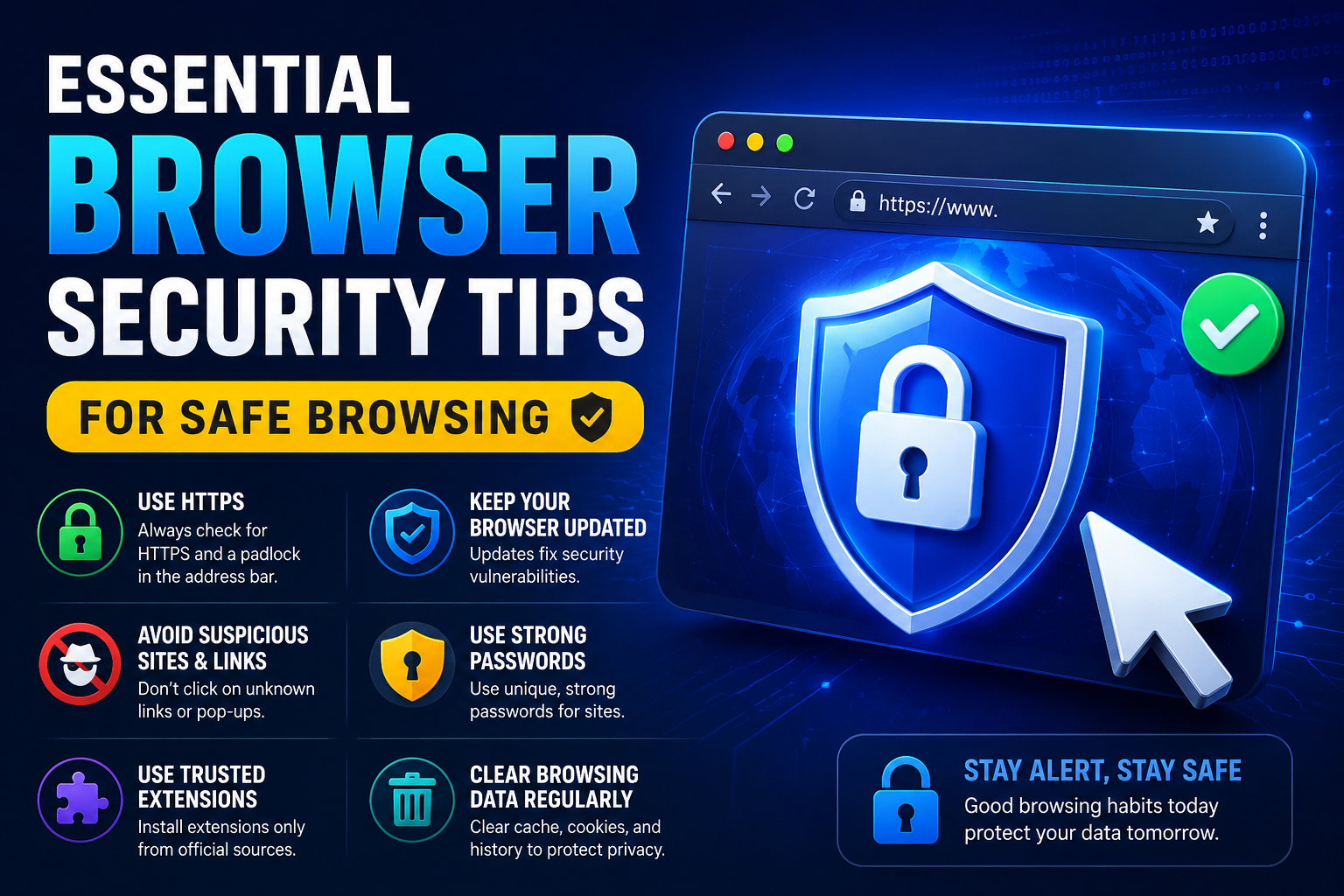
Web browsers have become one of the most frequently used applications on computers and smartphones. Whether you’re checking emails, shopping online, managing finances, using social media, or conducting research, your browser acts as the gateway to the internet.
Because browsers handle sensitive information daily, they are also a common target for cybercriminals. Malicious websites, phishing scams, browser hijackers, fake downloads, and tracking technologies can compromise both privacy and security.
Fortunately, most online threats can be avoided by following basic browser security practices. In this guide, we’ll explore essential browser security tips that can help protect your personal information and improve your online safety in 2026.
Why Browser Security Matters
Modern browsers store significant amounts of information.
Examples include:
- Saved passwords
- Browsing history
- Payment information
- Cookies
- Login sessions
- Personal preferences
If attackers gain access to your browser or trick you into visiting malicious websites, sensitive information may be exposed.
Strong browser security helps protect your:
- Privacy
- Accounts
- Financial information
- Devices
1. Keep Your Browser Updated
Browser updates often contain important security patches.
Popular browsers regularly release updates to fix:
- Vulnerabilities
- Bugs
- Compatibility issues
Browsers That Should Be Updated
- Google Chrome
- Microsoft Edge
- Mozilla Firefox
- Safari
Using outdated browsers increases security risks.
2. Use Strong Passwords
Many users store passwords inside browsers.
Weak passwords remain one of the biggest security threats.
Good Password Practices
Use passwords that contain:
- Uppercase letters
- Lowercase letters
- Numbers
- Special characters
Avoid reusing passwords across multiple websites.
For account protection advice, read How to Protect Your Online Accounts from Hackers.
3. Enable Two-Factor Authentication
Even if a password becomes compromised, two-factor authentication provides an additional layer of security.
2FA requires:
- A password
- A secondary verification method
This significantly reduces unauthorized access risks.
For more information, read What Is Two-Factor Authentication and Why You Need It.
4. Beware of Phishing Websites
Phishing remains one of the most common online threats.
Attackers create fake websites designed to steal:
- Passwords
- Financial information
- Personal data
Warning Signs
- Misspelled domain names
- Suspicious URLs
- Urgent messages
- Poor website design
Always verify websites before entering sensitive information.
5. Check Website Security
Before submitting information online, verify that websites use secure connections.
Look for:
- HTTPS
- Security indicators
- Trusted domains
While HTTPS alone doesn’t guarantee safety, it remains an important security signal.
6. Limit Browser Extensions
Browser extensions can improve functionality, but they also introduce risks.
Risks
- Data collection
- Tracking
- Malware
- Performance issues
Install only extensions from trusted developers.
Remove extensions you no longer use.
7. Clear Browsing Data Regularly
Browsers store:
- Cookies
- Cached files
- Browsing history
Clearing this data periodically can improve both privacy and performance.
Benefits
- Reduced tracking
- Improved browser performance
- Better privacy protection
8. Avoid Downloading Files from Untrusted Sources
Malicious downloads remain a common infection method.
Only download files from:
- Official websites
- Trusted publishers
- Verified sources
Avoid suspicious advertisements offering free software.
9. Use Secure Wi-Fi Networks
Browsing on insecure networks can increase risks.
When using public Wi-Fi:
- Avoid banking activities
- Avoid sensitive logins
- Verify website security
For networking advice, read Common Wi-Fi Problems and Their Solutions.
10. Enable Safe Browsing Features
Modern browsers include built-in security protections.
Examples include:
- Dangerous website warnings
- Download protection
- Malware detection
These features should remain enabled whenever possible.
11. Protect Personal Information
Avoid sharing unnecessary personal information online.
Cybercriminals often collect publicly available information for:
- Fraud
- Identity theft
- Social engineering attacks
Limit exposure whenever possible.
12. Use Privacy Settings
Most browsers provide privacy controls.
Review settings related to:
- Cookies
- Tracking
- Permissions
- Data collection
Adjust settings according to your preferences.
13. Log Out of Sensitive Accounts
Many users leave important accounts logged in continuously.
Logging out provides additional protection on:
- Shared devices
- Public computers
- Workstations
This reduces unauthorized access risks.
14. Monitor Saved Passwords
Browsers often store login credentials.
Review saved passwords periodically and remove:
- Outdated accounts
- Duplicate entries
- Unused services
Password managers may provide stronger security.
15. Watch for Browser Hijacking
Browser hijackers can:
- Change homepages
- Redirect searches
- Display advertisements
Warning Signs
- Unexpected redirects
- New toolbars
- Unknown extensions
Remove suspicious software immediately.
Common Browser Security Mistakes
Avoid these common errors.
Clicking Unknown Links
Suspicious links remain a major attack vector.
Ignoring Security Warnings
Browser warnings exist for a reason.
Using Outdated Software
Old software often contains known vulnerabilities.
Installing Excessive Extensions
Too many extensions increase risk.
Reusing Passwords
Credential reuse remains dangerous.
Browser Security Checklist
Use this checklist regularly:
✔ Browser updated
✔ Strong passwords used
✔ Two-factor authentication enabled
✔ Safe browsing features enabled
✔ Unnecessary extensions removed
✔ Browsing data cleared
✔ Security warnings respected
✔ Sensitive accounts protected
Frequently Asked Questions
Which browser is the most secure?
Modern browsers such as Chrome, Firefox, Edge, and Safari offer strong security when kept updated.
Are browser extensions safe?
Most are safe when obtained from trusted sources, but unnecessary extensions should be avoided.
Should I save passwords in my browser?
While browser password storage can be convenient, dedicated password managers often provide stronger protection.
Is HTTPS enough to determine website safety?
No. HTTPS improves security but does not guarantee legitimacy.
How often should I clear browser data?
Monthly cleaning is sufficient for most users.
Conclusion
Web browsers play a central role in modern digital life, making browser security more important than ever. By keeping browsers updated, using strong passwords, enabling two-factor authentication, avoiding phishing attacks, and practicing safe browsing habits, users can significantly reduce online risks.
A few simple precautions can provide meaningful protection for your accounts, personal information, and devices while helping you browse the internet with greater confidence.